Clusterward
AI assistants

Your Kubernetes operations in a conversation: Clusterward as an MCP server

Why did the deploy fail? Which services run at their limit? Who changed the domain yesterday? Connect Claude, Cursor or VS Code to your workspace and just ask – the assistant answers from the same data as the cockpit, sees only what you allow it to, and every call is in the audit log.

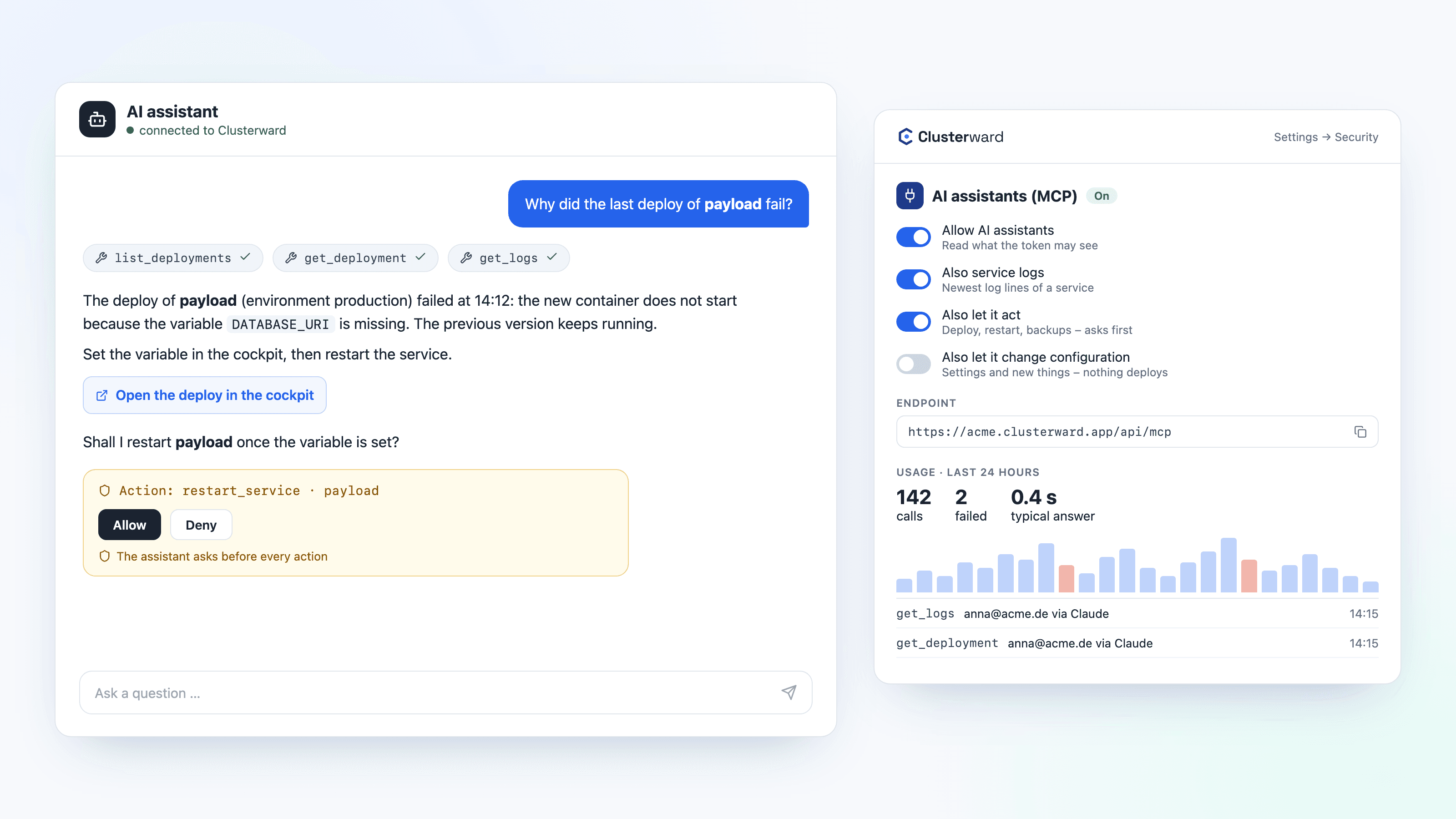
An AI assistant answers a question with data from Clusterward, next to the cockpit’s “AI assistants (MCP)” card
An AI assistant answers a question with data from Clusterward; in the cockpit you decide what it may doIllustration: a simplified view. The product shows more details and options.
In short

What is an MCP server?

An MCP server offers tools to AI assistants through the Model Context Protocol, the open standard Claude, Cursor, VS Code and other programs use to reach data and actions. Clusterward is such an MCP server for your Kubernetes operations on Scaleway: around 40 tools to look things up – almost everything the cockpit shows – and, if you allow it, 22 tools to act and 17 to change and create. The same roles as in the cockpit decide what an assistant sees and does.

At a glance

Assistants
Claude (web, desktop, app), Claude Code, Cursor, VS Code
Sign-in
As a Claude connector with your login, or with an API token
Default
Off – and read-only once switched on
Acting
Deploy, restart, backups, checks – after asking
Changing
Settings and new things – with a third switch
Evidence
Every call in the audit log, with person or token
Cost
Included in every plan
How it works

From question to answer

  1. 01

    Switch on

    Under Settings → Security you allow AI assistants for the workspace – logs, actions and changing settings each with a switch of their own.

  2. 02

    Connect

    In Claude as a connector with your login, in Claude Code, Cursor or VS Code with the workspace’s address and an API token.

  3. 03

    Ask

    The assistant picks the right tools, reads deploys, logs or checks and answers with a link to the page in the cockpit.

  4. 04

    Approve

    If it is to do something – restart, bring back an earlier version – it asks first. Every call is in the audit log.

What’s included

What the AI connection includes

Reading is the default, acting a deliberate decision – both with the same rules as in the cockpit.

Ask instead of click

“Why did the deploy fail?”, “What runs hot?”, “Which sites are down?” – the answer comes from deploy history, logs, usage and uptime checks.

Reading by your rights

An assistant reads almost everything the cockpit shows – clusters, pods, databases, domains, buckets, pipelines – but only what its role and applications allow. A tool without the right does not even appear.

Acting only with permission

With “Also let it act”, an assistant starts what the cockpit’s buttons start: deploy, restart, earlier version, a database backup or snapshot now, a restore test, the configuration check, a wildcard certificate, uptime checks – asking every time.

Claude connector without a token

Add it in Claude in the browser, the desktop app or on the phone as a connector, sign in to the cockpit, allow it – no shared key.

Claude Code, Cursor, VS Code

One line in the terminal or a JSON entry in the MCP settings, plus an API token explicitly enabled for assistants.

Twelve ready-made prompts

Diagnose a failed deploy, uptime report, capacity review, incident review, backup check, who changed what – the client completes names as you type.

Knows the Help

The assistant reads every Help article and the glossary. That way it uses the cockpit’s words and sends you to the right page.

Every call in the audit log

Tool, a summary of the arguments, result and duration – under the token or as “person via Claude”.

Usage at a glance

Calls over 24 hours, 7 or 30 days, failures and their causes, answer times per tool, who asked and what nobody uses.

Change settings

With the third switch, “Also let it change configuration”, an assistant changes resources, scaling, image tag, backup and snapshot plans, builds or tenant inputs. Nothing rolls out on its own.

Create on request

“Create a staging environment for acme”: applications, environments, builds, services, a database for a service, catalog apps or a tenant onboarding – passwords stay in the cockpit.

Says why not

If the connection may not do something, the assistant names the reason – switch off, read-only connection or a role without the right – and what would have to change.

Examples

What you can ask

The assistant combines the tools on its own. A few questions teams ask day to day, and where the answer comes from.

QuestionWhere the answer comes from
Why did the deploy of payload fail?Deploy history with the full error text, plus the logs
Which services ran into their memory limit today?Usage and restarts of every service
Why does shop.acme.com not answer?DNS against the load balancer, record, certificate, uptime checks
Who changed the payload service yesterday?Audit log: who, what, when – without the entry’s details
Which services have commits not yet live?Comparison of branch and running version
Are our backups running?Database backups, bucket backups and restore tests
Create a staging environment for acme.With the right to change: a new environment, not rolled out
Limits

What an assistant never gets

Every answer is cut to the fields cleared for its tool – even what the cockpit shows on purpose never reaches the assistant.

  • No secrets

    No environment variables and secrets, no database connection data, no S3 keys, no chart values.

  • No deleting

    Nothing that deletes, undeploys, tears down or offboards a customer – the one exception: removing an uptime check.

  • No administration

    No users, roles and tokens, no SQL console. An assistant cannot grant itself rights.

  • No special path

    Every tool calls the same routes as the cockpit: same rights, same checks, same IP allowlist.

What changes

Operations questions with and without the AI connection

Facts

Settings and limits

Everything is off per workspace until you switch it on. After that, what an assistant may do follows the role of its token or your own.

WhatDefaultHow it changes
AI assistantsoffSettings → Security
Service logsoffa switch of its own
Actingoffswitch plus “operate” right
Changing settingsoffswitch plus consent when connecting
Token for assistantsnot enabledtick on the API token
Claude connectorread only“also act” when allowing
Connector sessionaccess 1 hourrenews itself, 30 days unused = sign in again
Further reading

AI assistants in context

An assistant works with the rights you set in Security & access – roles, applications, API tokens and the IP allowlist apply unchanged. Its answers come from Logs & monitoring and the deployments of your workspace; every call is evidence for Audit & NIS2.

Claude’s connector calls from Anthropic’s servers. If your workspace sits behind an IP allowlist, their outbound range 160.79.104.0/21 belongs on the list – or you use Claude Code or Claude Desktop with a token, whose calls come from your own machine.

Related pages

What goes with it

Security & access

Roles per area, API tokens, mandatory 2FA and the audit log.

Go to Security

Deployments

Deploy, restart and earlier versions – by assistant too.

Go to Deployments
FAQ

Frequently asked questions about AI assistants and MCP

  • Any that speak the Model Context Protocol over HTTP: Claude in the browser, the desktop app and on the phone as a connector, plus Claude Code, Claude Desktop, Cursor and VS Code with an API token. The address is in the cockpit under Settings → Security → AI assistants.

Your question isn’t here? Write to us – we usually reply the same working day.

Ask a question

AI assistants in the demo

We connect Claude to a sample workspace, ask about a failed deploy and show the entry in the audit log.